The Platform Studio guide
(For beginners only)Written by Jon (shady)
Don't have Platform Studio Professional? BUY IT!!!
Ok first off, if youre running a Windows Vista computer and you're having problems running Platform Studio and you get weird error messages when you start a game, or even when you open up Platform studio itself, here is the solution.1. Run Platform Studio as the Administrator (right click the Platform Studio shortcut and click Run as Administrator)
2. Maybe you don't have the latest PS version? If you don't then make sure to upgrade. The newer version seems to run better on Windows Vista.
-----------------------------------------------------------------------------------------------
- About the guide
-----------------------------------------------------------------------------------------------
If you are completely new to Platform Studio, this guide will help you understand the basics of the program. I will try and break it down to you as easy as possible. If you are looking on how to create shooting enemies, checkpoints, highscore lists those are all explained in the Platform Studio help file.
Table of contents:
1 -Creating a store, learning if commands
2 -Learning how the player works
3 -Using Locations
4 -Learning to use the tileset editor
-----------------------------------------------------------------------------------------------
1 -Creating a store, learning if commands
-----------------------------------------------------------------------------------------------
Ok once you opened up Platform Studio, create a new game. Now open up your action editor, it can be found under; Tools > action editor
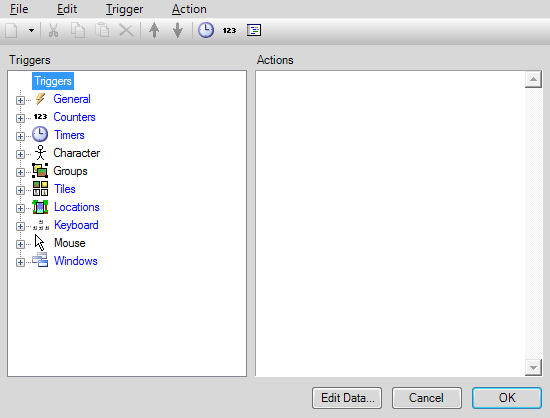
This is the action editor, this is where you can create counters, timers, edit your characters actions, and so on... all of the major programming will be done here. Ok so I'll show you how to create a simple store. First, click edit, then counters. This window should appear now:
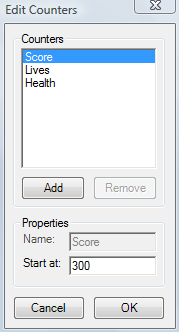
Set the counter 'score' to 300, as shown in the picture then click ok. Now what I want you to do is to leave the action editor but make sure to click ok so it saves your information. Next, click Tools > Window editor. Ok what we're going to do is use the main menu window as the store (of course you could always make a whole seperate window for this if you wanted). Now create a button and name it 'Buy health', then create 2 text counters, a score counter and a health counter. Now this is what your store should look like:
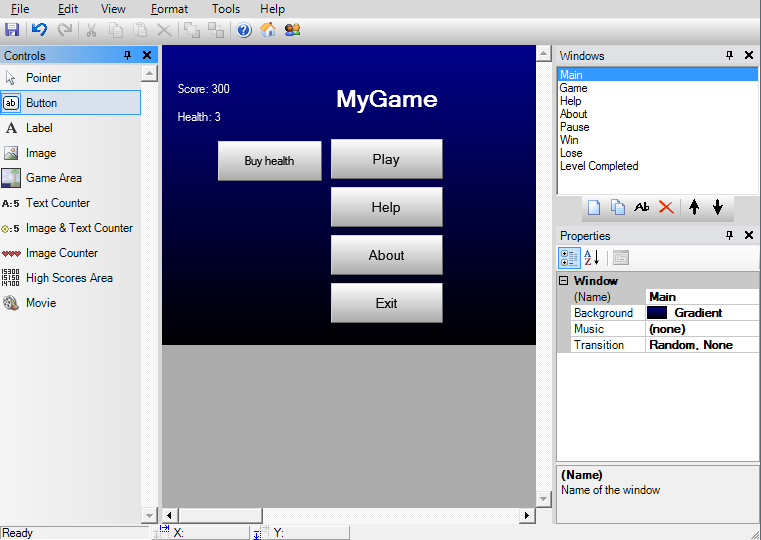
Now click your 'Buy health' button and go to its properties, lets edit its actions. Even buttons have their own little action editor. Ok so click Ctrl and N then the 'edit action' window should appear, go to the counters section and find 'If counter...' leave the parameters how they are (I will explain what this does in a moment). Then find the modify health action which is in the same category and leave its parameters. Lastly, go to the scripting section and chose the 'End if' action.
Here is what the actions mean:
If counter...(Score.>=,100) - If the 'score' counter is greater than, or equals to 100. (>= greator than and equals to, <= less than and equals to, > greater than, < less than)
Modify Health (1) - Increases your health by 1
End If - Ends the if command (End ifs are always needed if there is an "if" action present)
Ok so now your action editor should look exactly like this:
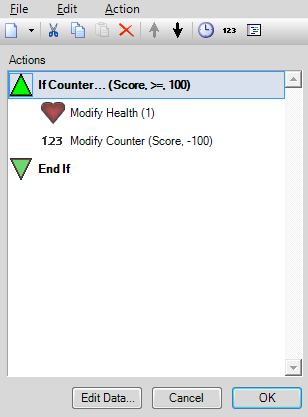
So what this means all together is that if the score counter is greater than or equals to 100, you get 1 health and then the score counter decreases by 100. Do you understand? So if you go to a store with 300 dollars (because the score counter starts at 300) and buy health, you lose 100 dollars and now you have 200 left, easy stuff.
Now that you have your store created you might as well try it! Click run.
What you have learned:
-how to creat a store using windows
-how if commands work
And you learned what the following actions do:
If counter...()
Modify Health ()
End If
-----------------------------------------------------------------------------------------------
2 -Learning how the player works
-----------------------------------------------------------------------------------------------
Ok assuming you read the first chapter, exit that game and start a whole new one. Go to the Action editor, we're going to learn how the main character works. First off, do you see some of the triggers are highlighted blue? That means it contains actions. The first trigger is 'General' this means for everything, open it and click 'Always'. Once you click always, it should show this in the actions section:
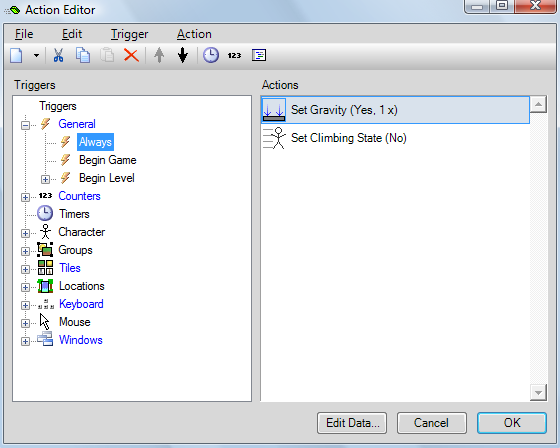
You will see 2 actions; Set gravity and Set Climbing State, this is what keeps the player on the ground. If you set gravity to no, then you would have a 2D kinda game and not a platform game. And you're probably wondering what the '1x' in the Set gravity action means? Well it's what makes your character fall back to the ground once you've jumped into the air. ANYTHING above 1 will cause the player to just stick in the air and it would be almost like hes floating around. I'll just make a little diagram here to explain what both actions mean:
Set Gravity(Yes, 1x) - Sets the gravity of the world, making it a platform game. If set to no, it would be a 2D game. No Platform Studio doesn't only make platform games!
Set Climbing State(No) - Sets whether or not your character will go into its climbing animation when moving upwards.
Moving left:
Now lets move on to the characters movements! Ok so in the action editor, go to the trigger 'Keyboard' this trigger sets the keys on your keyboard to perform an action. Go to the 'left arrow key' then click Hold. What Hold is, is that when you hold down the left arrow key it will perform an action. You should know what Press and Release means then, right? Well just incase if you don't;
Press - when you press the key once, it performs an action (good for single fire guns)
Release - when you release the key, it performs an action
Hold - when holding down the key, it performs an action (good for automatic guns)
So now to the Hold left arrow key's action you will see the action "move character" I'll explain what all of this means.
Move Character (Left, 4 tiles/second, Yes) - this makes the player move left 4 tiles per second and the 'yes' means that it will show the characters walking animation.
Moving right:
The right arrow key is basically the same thing so lets move on to the up key. You will see that there is an action in both Release and Hold. Lets look at the Hold trigger first, oh look! It's another if command. It says;
Moving up:
If Gravity Exists - pretty straight forward
Jump (4 tiles,2 tiles, 0.5 s) - 4 tiles means you will jump 4 tiles in the air, the .5 seconds is the time it would take to land back down again if you're holding down the up key.
Else - With else, if the if is not true the else will execute.
Move Character (Up, 2 tiles/second, No) - this is how you get your movement when you set gravity to no. If this action wasn't here and you set the games gravity to no, then you wouldn't be able to move upwards.
End If - Remember when I said if commands always need End Ifs at the end? Well here's another example!
What all of this means is if you hold the up key and gravity exists, you will jump in the air 2 tiles per second or else the character would move upwards like a 2D game if gravity was set to no.
So now for the up arrow Release key. This just bascially means if you release the up key you stop jumping, it's as easy as that.
Moving down:
Now lets move to the down arrow key, you will see in the Hold trigger it says;
If Gravity Exists
Else
Move Character (Down, 2 tiles/second, No) - same thing with the up key, if this had not been here you wouldn't be able to move down when gravity is set to no.
End If
How to sprint:
Go to the trigger Keyboard > Shift and Hold
In Hold you can use the following action:
Move_character (Current Direction, 6 tiles/second, Yes)
So this would mean that if you hold down Shift, you would go 6 tiles/second which is pretty fast.
What you have learned:
-how to set gravity off and make a 2D game.
-how to move the character left, right, up, and down.
-how to sprint
And you learned what the following actions do:
-Set Gravity()
-Set Climbing State()
-Move Character ()
-----------------------------------------------------------------------------------------------
3 - Using Locations
-----------------------------------------------------------------------------------------------Entering different levels:
Now I will teach you about enetering levels, and how to go back to the previous level. First you will have to go to the 'Tiles' trigger and go to the Exit tile. You will see in the Hit part it has the Modify Level action.
If you want to just advance to the next level then all you need to use is Modify Level (1)
But if you want to go back to the level you just came from, you will have to use Modify Level (-1) AND by using locations. How to place a location is easy, first go to the level editor and on the far right side it has the 'Layers' panel, check off 'Location' and draw a location in front of the exit tile, or where-ever you want your character to go that will take him to the next room.
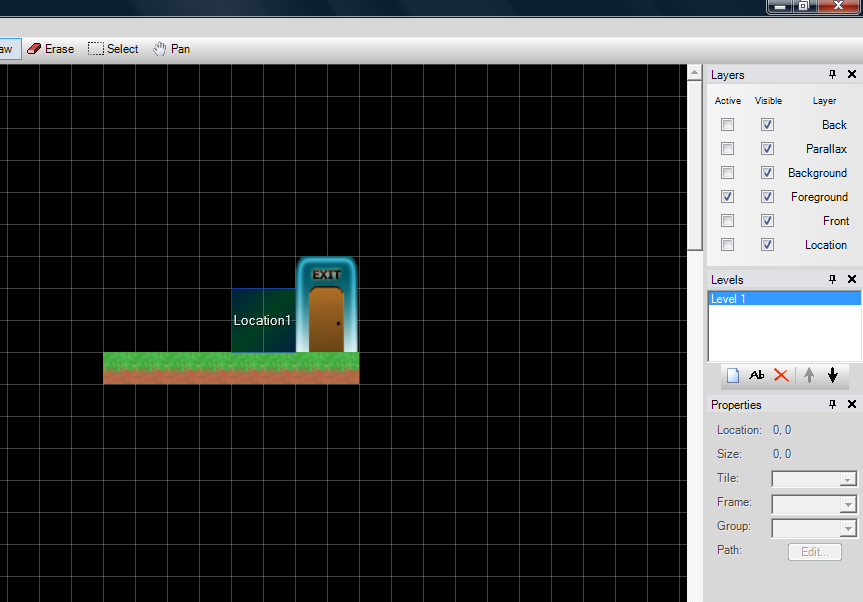
Ok so now lets make Location 1 work once you eneter it. Go to the Action Editor and find the 'Locations' trigger and open up Level 1, then open up Location 1 and click on the Enter trigger so when you enter the area of the location it will perform its action. Now lets give it the action Modify Level (1) (remember click Ctrl and N to open the Edit action window) which can be found in the category 'Game'. The next step might seem a little confusing but I'll try my best to explain it.
find the area in the next level where you want your character to appear and hover your cursor over the squar and find its x and y coordinates. Here is what I mean:

Ok so for me my x and y coordinates are 2 and 19. Find your coordinates and put this action in right after the modify level action.
Set Position (2,19) - jumps you to that position on the level.
This is what you should all have now:
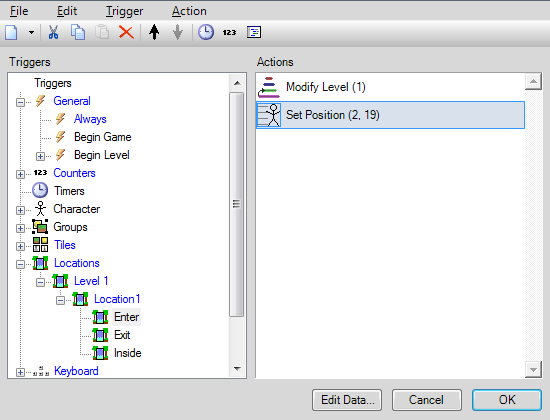
Then do the same for the next level, find the coordinates from where you were last from the level before it. Know what I'm sayin'? This is useful for walking into buildings and leaving them.
You can also use this for when you walk up to a shop-keeper it will take you to your shop window, remember how you made the shop? You can do this by using the action and put it in the Hit trigger of the shop keeper Show Window (your shop) which is located in the 'Misc.' section of the action editor. Just change "your shop" to the name of the window of your shop. And when you want to leave the shop you can use the Set Position (2,19) actions and change 2, 19 to the coordinates of the area IN FRONT of the shop keeper. This prevents you from doing a never ending cycle of entering the shop and leave and enetering because your character will be right on top of the shop keeper, since the actions are in the hit event.
What you have learned:
-how to enter a level and then go back to the previous level with locations.
And you learned what the following actions do:
-Modify Level ()
-Set Position ()
-Show Window ()
-----------------------------------------------------------------------------------------------
4 - Tileset Editor
-----------------------------------------------------------------------------------------------
Adding an enemy tile:
First, open up the tileset editor which is located in Tools > Tileset Editor
You can add your own enemy tile into the game by clicking the 'add' tab and upload your tile (make sure it isn't a .GIF, Platform Studio doesn't work with GIFs). A good file type for your Platform Studio tiles are .PNG it's what I always use. For now, click on the "Enemy Shooter" tile and view its properties:
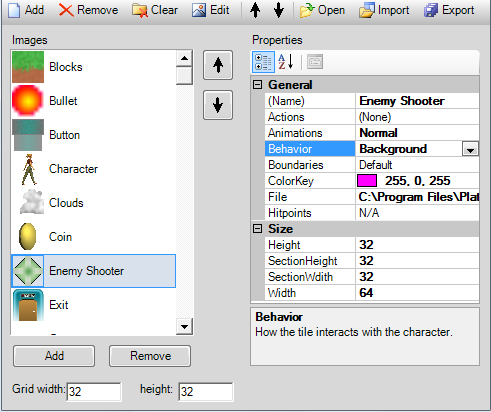
It the 'Behavior' properties is what your tile's behaviour is, obviously! Right now it's behviour is set as Background which means that this tile will sit at the background and your player will walk right thru it. So lets make the enemy tile have it's enemy behaviours. Click on the behaviour properties and go to (Custome...) and scroll down the the bottom where it has the 'Solids' section and chose enemy then click ok. So now this tile has all the features that makes it the enemy, if you jump on this tile it will kill it, or if you hit the sides of it you will lose 1 health.
And to add the main character is pretty much the same thing as adding an enemy tile but you just choose the 'Character' behaviour and that specific tile will become the main character. You don't have to go and program the tile how to move left, right up or down because it's all done for you. If you want to add coins for money just put the behaviour as collectable it's really easy. Same thing with creating lives, hearts, ect...
What you have learned:
-how the Tileset Editor works
-------------------------------------------------------------------------------------------------
Hopefully you now have a good understanding of Platform Studio and how it all works. Just keep experimenting with different stuff and learn what every action does. It shouldn't take long at all to learn Platform Studio! In my opinion, this program is the easiest for game development by far.
If you have any questions, email me; jay-cee@live.ca (I can give you an answer almost instantly because my emails send to my phone)
